


Learning how to install serum presets is a fundamental skill for any producer looking to expand their sound palette within the Xfer Records ecosystem. Whether you have downloaded a fresh batch of professional sound banks or created your own custom patches, getting them into the right directory is essential for a smooth workflow.
By placing these files in the correct location, you ensure they appear directly within the plugin’s internal browser, allowing you to focus on your creative process rather than technical file management. Follow these steps to master your library organization and keep your studio sessions flowing without interruption.
Locating the Serum Presets Folder

Before you can import new sounds, you must identify where the software stores its data on your computer. The Serum Presets folder is the central hub for all your .fxp files, wavetables, and noise samples.
Because the software is a cross-platform VST plugin, the file path differs slightly depending on your operating system. On Windows, you will typically find this directory by opening the “Xfer” folder within your documents, while macOS users generally access it via the Library folder.
If you are struggling to find the exact location, the software provides a convenient shortcut. Open your DAW, load an instance of the instrument, and click on the “Menu” button located in the top right corner of the interface. From there, select “Show Serum Presets Folder.”
This action will immediately trigger Windows File Explorer or macOS Finder to open the correct directory. This method is foolproof and avoids the need to manually hunt through system files. Once the folder is open, you will see subfolders categorized by “Presets,” “Wavetables,” and “Noises.”
Importing Your FXP Files Successfully
Once you have identified the destination folder, moving your files is a straightforward process. Most sound banks are distributed as .fxp files, which contain all the parameters for a specific sound.
To keep your library organized, it is highly recommended that you create a new folder within the “Presets” directory for each new sound bank you acquire. This prevents clutter and makes it much easier to navigate your collection later on.
After creating your subfolder, simply copy and paste or move your files into this new location. If you prefer a faster method, you can use the drag and drop functionality directly from your desktop into the desired category. Once the files are moved, they should theoretically be available in your DAW.
If they do not show up immediately, you might need to refresh the plugin. You can trigger a rescan by right-clicking inside the preset browser window and selecting “Rescan folders on disk.” This forces the plugin to re-index your files and detect any recent changes in the directory.
Integrating Wavetables and Noise Samples
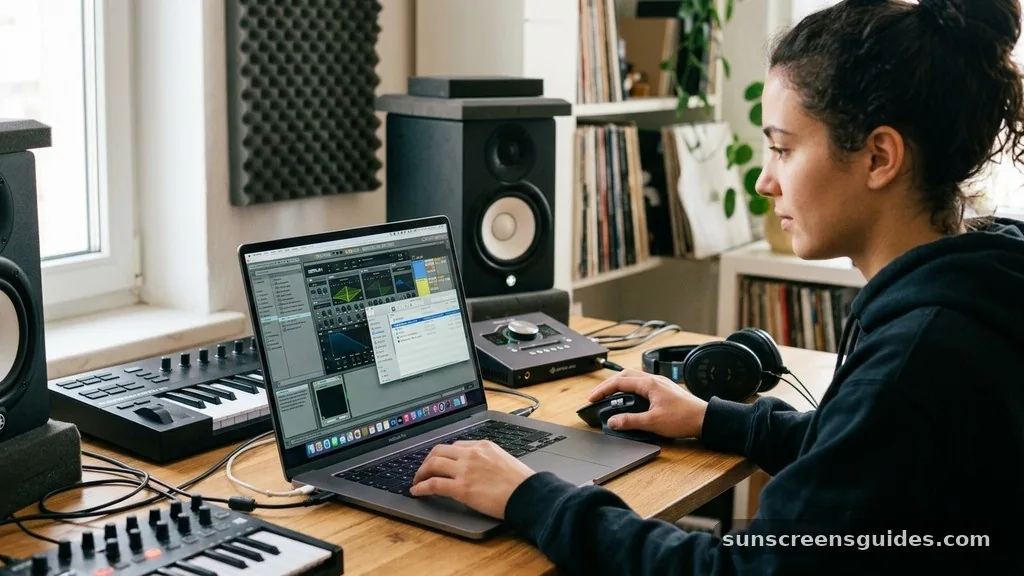
While many users focus exclusively on .fxp files, professional sound banks often include additional components like custom wavetables and noise samples. These elements are crucial for the unique character of many modern presets.
If you fail to install these assets, your patches may sound incomplete or fail to load entirely. To install these, look for the “Wavetables” and “Noises” subfolders within the main directory.
Copy the provided files into their respective folders. It is often helpful to keep these organized by the name of the sound pack to ensure you can identify them if you ever need to delete or move them. Below is a quick comparison of the file types you will encounter during this installation process:
| File Type | Function | Installation Folder |
|---|---|---|
| .fxp | Preset parameters and settings | /Presets/User |
| .wav | Custom noise samples | /Noises/User |
| .wt | Custom wavetable shapes | /Wavetables/User |
Troubleshooting Common Installation Issues
Even when you follow the steps correctly, technical glitches can occasionally prevent your sounds from appearing. One of the most common issues occurs when files are nested too deeply or placed in the wrong parent directory.
Ensure that your files are within the main Xfer folder structure rather than a random folder on your desktop. If you are still having trouble, consider these common pitfalls:
- Permission errors: Ensure your user account has read and write access to the Xfer folder on your system drive.
- File corruption: Sometimes a download can be interrupted; try redownloading the bank if a specific preset consistently fails to load.
- Plugin version mismatch: Ensure your software is fully updated, as newer banks created in the latest version may not load in legacy versions.
- Hidden folders: On some macOS systems, the User Library folder is hidden by default; use the “Go” menu in Finder while holding the Option key to reveal it.
Addressing these issues usually resolves most visibility problems. If the plugin still refuses to recognize your new assets, a clean restart of your DAW often clears the buffer and forces a fresh scan of the plugin directory.
Addressing Specific Topical Gaps
A common question that often arises involves the difference between installing factory presets and third-party user content. While factory presets are automatically installed by the software installer, third-party content must always be placed in the user library manually. Many users also ask if they can change the default directory to an external hard drive to save space on their primary system drive.
While this is possible by moving the entire Xfer folder and creating a symbolic link, it is generally safer to keep the core data on your primary drive to ensure maximum performance and stability during live playback. By following these steps and keeping your folder structure clean, you ensure that your production environment remains efficient and your creative flow is never hindered by technical friction.
Frequently Asked Questions
Where is the Serum Presets folder located?
It is typically found in your Documents folder under Xfer/Serum/Presets or within your system user Library.
Why aren’t my serum presets showing up?
You likely need to right-click in the preset browser and select “Rescan folders on disk” to refresh.
Can I use drag and drop for installation?
Yes, you can drag and drop .fxp files directly into the preset folder within your file manager.
Do I need to restart my DAW after installing?
Usually, a rescan is sufficient, but restarting your DAW ensures the plugin fully updates its internal database.
Where do custom wavetables go?
Place custom wavetables in the “Wavetables” folder located inside your main Xfer Serum data directory.
Are .fxp files compatible with all versions?
Most presets are forward-compatible, but older versions of the plugin may struggle with very new, advanced files.
How do I backup my user presets?
Simply copy your entire “User” folder within the preset directory to an external drive or cloud storage.
Understanding how to install serum presets properly allows you to build a personalized production environment tailored to your specific musical style. By maintaining a clean folder structure and knowing how to trigger a manual rescan, you eliminate the technical headaches that can distract from your songwriting. Always remember to organize your third-party downloads in subfolders to keep your library manageable as it grows over time.
If you run into issues, checking your file paths and ensuring proper permissions are almost always the first steps to a quick fix. Now that you have a clear grasp of the installation process, you can focus entirely on sound design and crafting your next track. Feel free to experiment with different organization strategies to see what works best for your specific workflow.